Day 42: IAM Programmatic access and AWS CLI 🚀 ☁

Today is more of a reading excercise and getting some programmatic access for your AWS account
IAM Programmatic access
In order to access your AWS account from a terminal or system, you can use AWS Access keys and AWS Secret Access keys Watch this video for more details.
AWS CLI
The AWS Command Line Interface (AWS CLI) is a unified tool to manage your AWS services. With just one tool to download and configure, you can control multiple AWS services from the command line and automate them through scripts.
The AWS CLI v2 offers several new features including improved installers, new configuration options such as AWS IAM Identity Center (successor to AWS SSO), and various interactive features.
Task-01: Create AWS_ACCESS_KEY_ID and AWS_SECRET_ACCESS_KEY from AWS Console
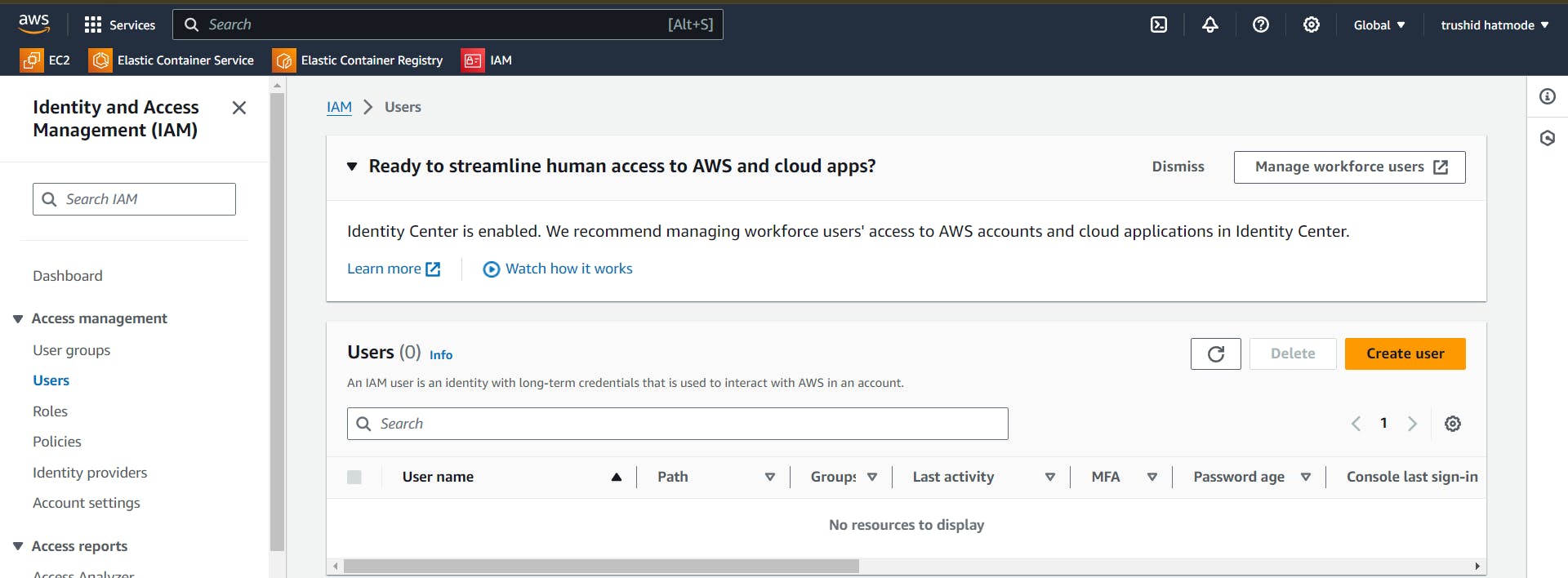
We have already seen how to create an IAM user in my previous blog. Here we can created a user.
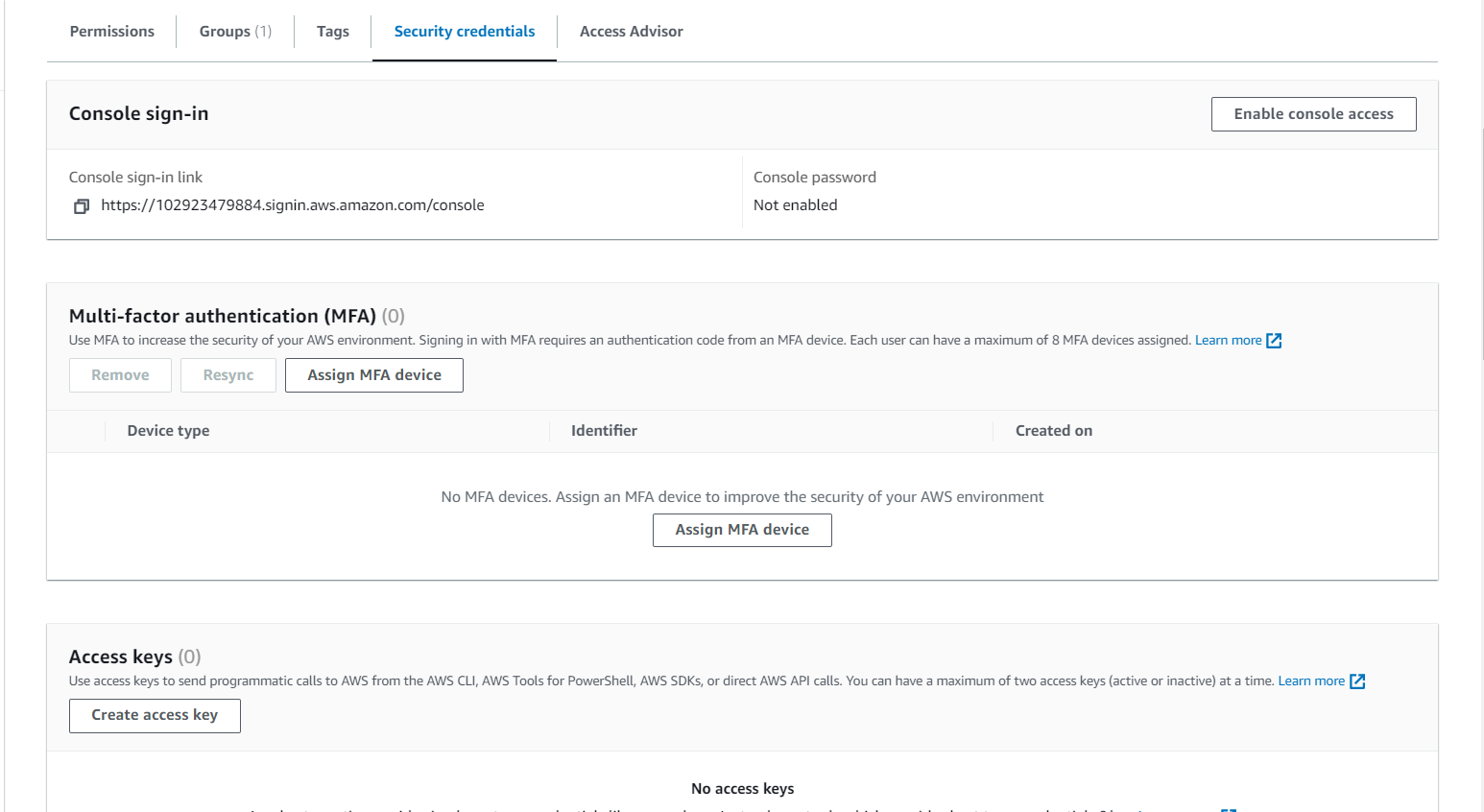
Navigate to the security credentials section and create Access Key.
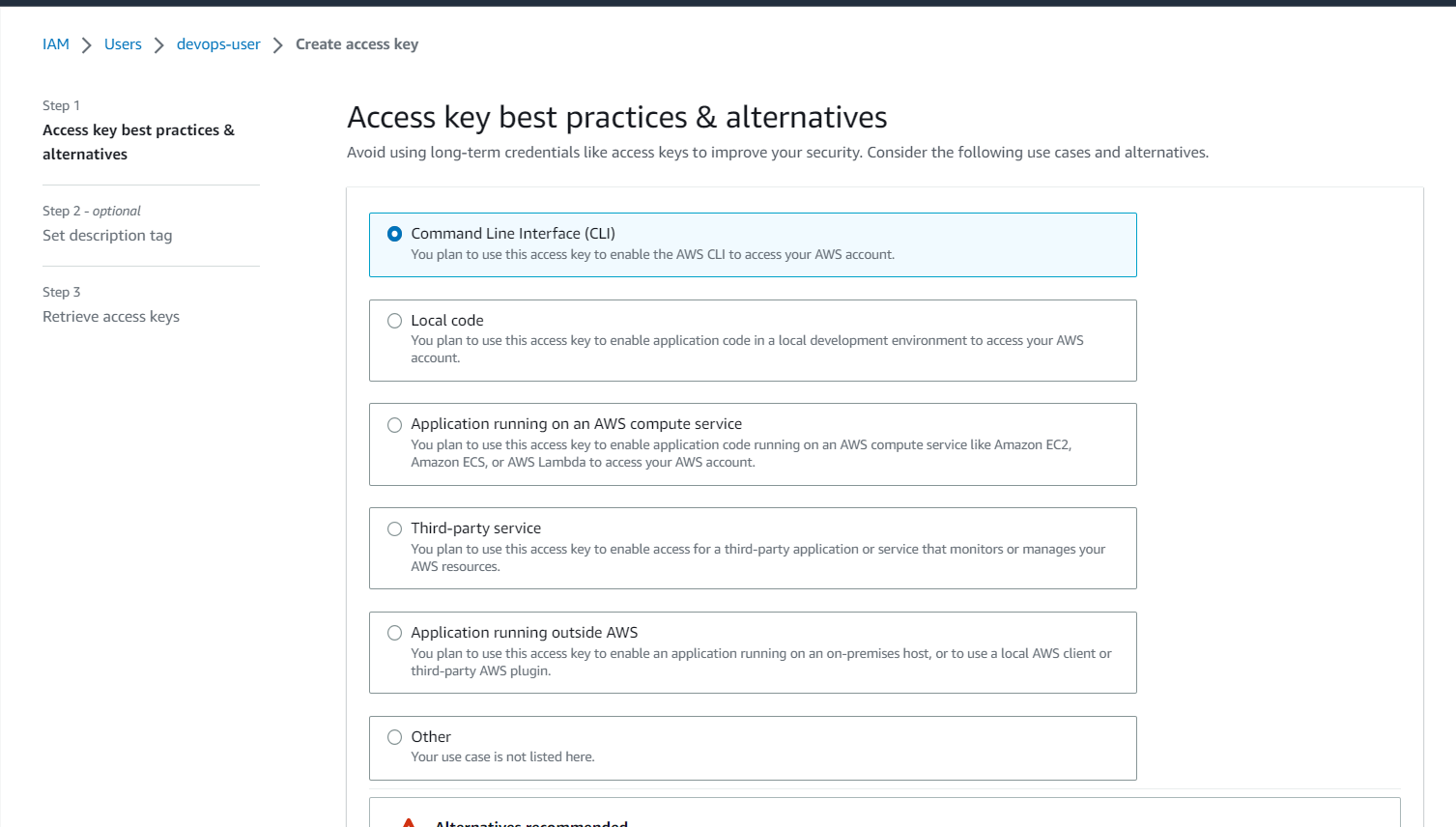
Choose the CLI option or as per your requirement.
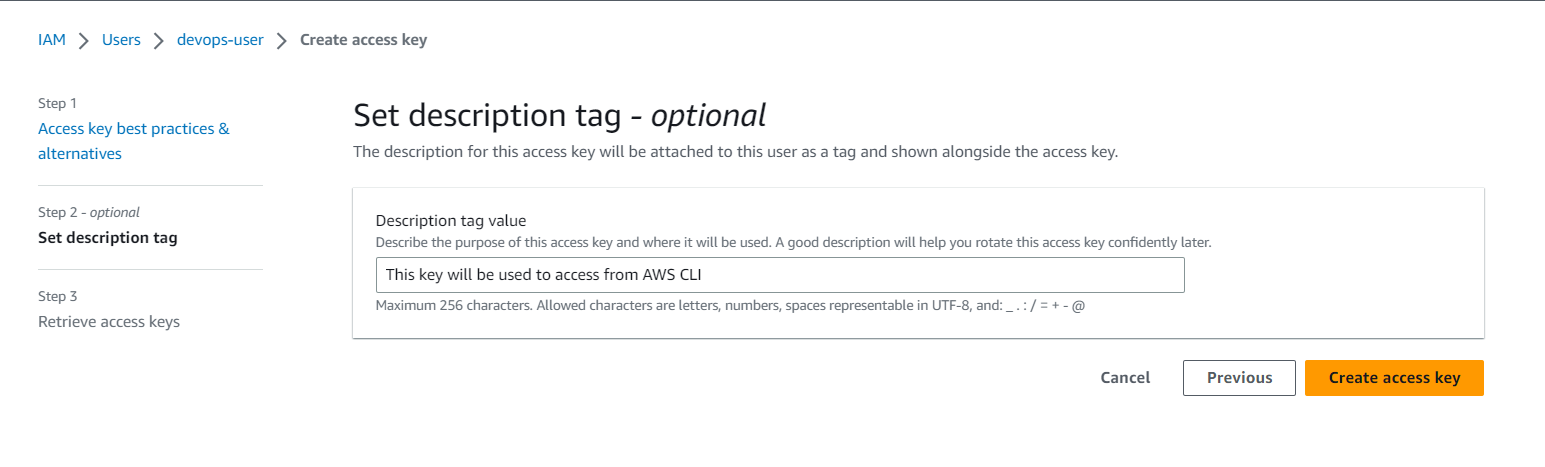
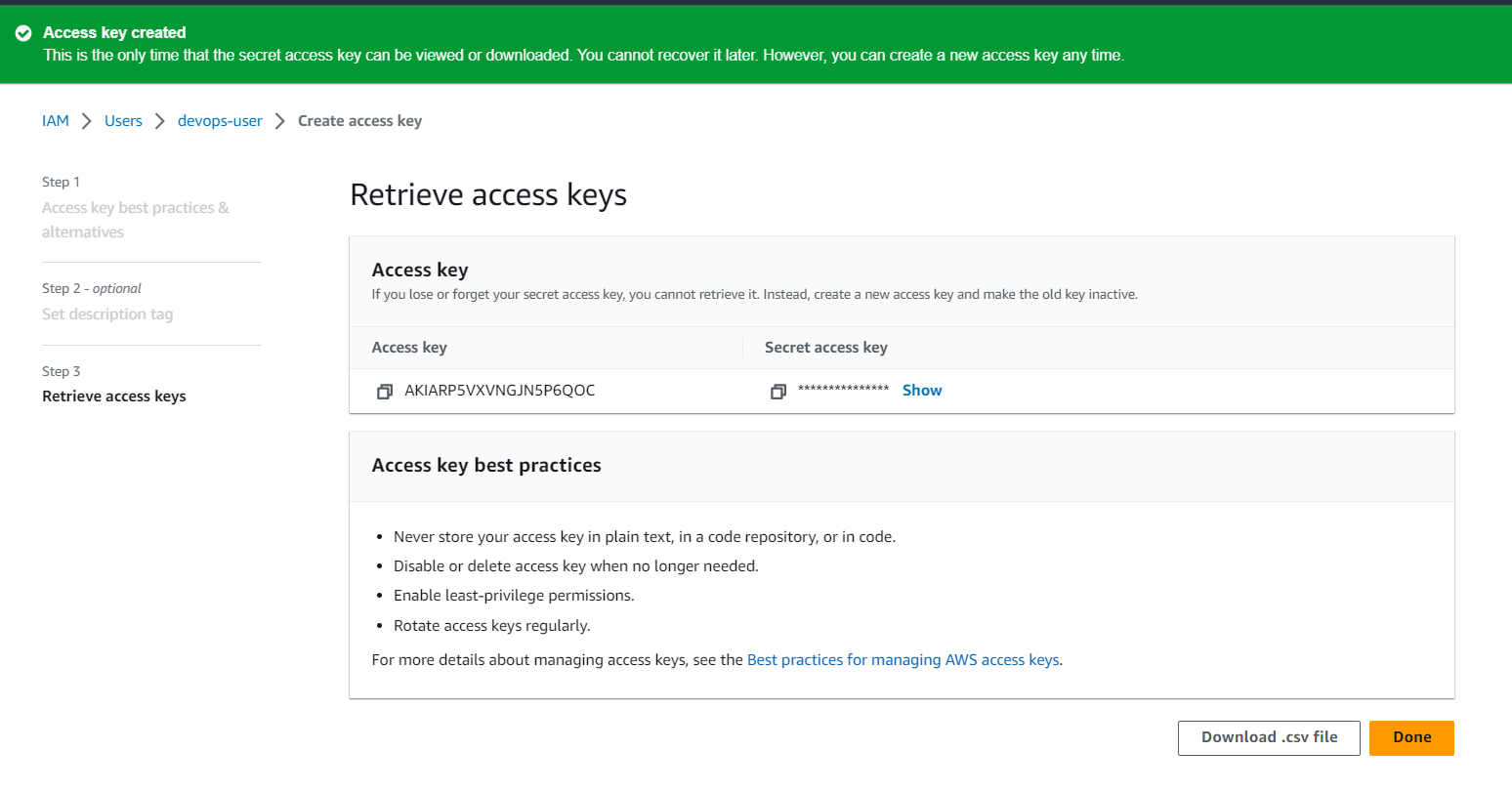
Now, create the access key.
You can see two keys now which are the Access key and the Secret access key.
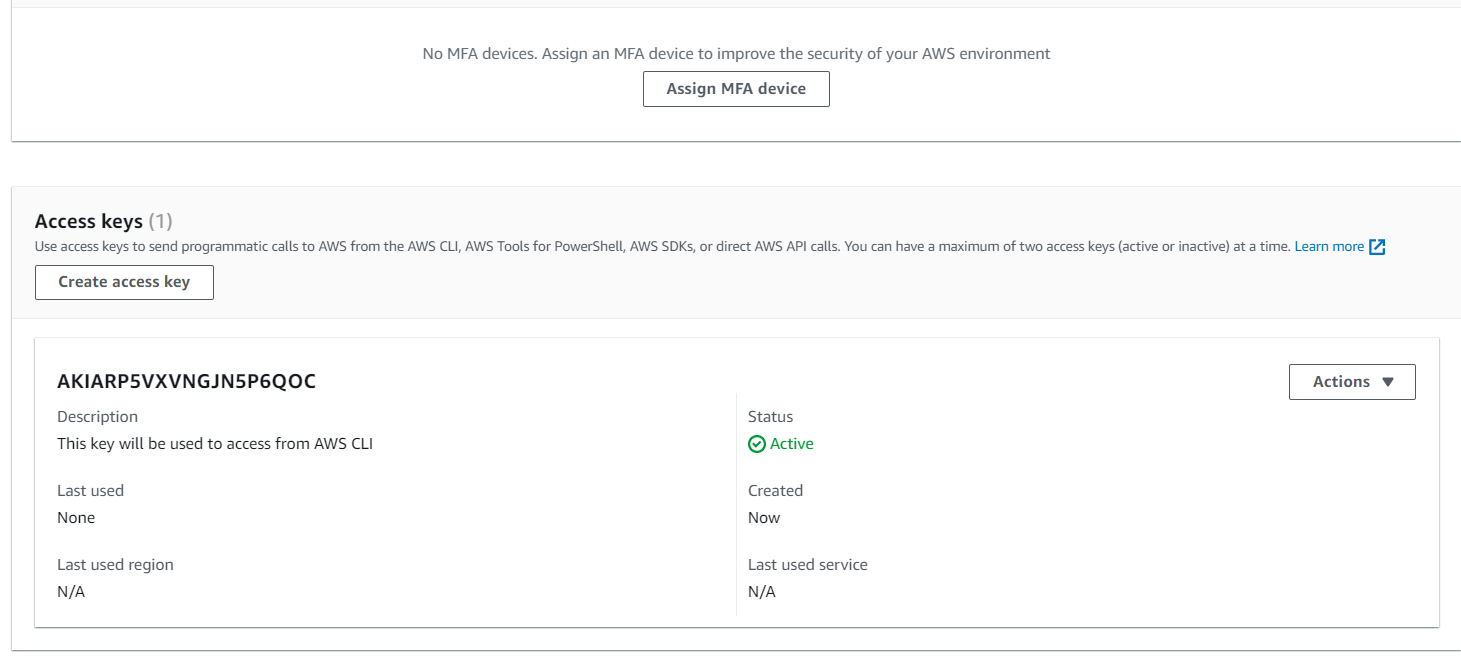
You can verify the status of the key in the user section.
Task-02: Setup and install AWS CLI and configure your account credentials
Setup and install AWS CLI and configure your account credentials
Install the AWS CLI by following the instructions for your operating System:
Here is the official website link for Install AWS Cli:-
https://docs.aws.amazon.com/cli/latest/userguide/install-cliv2.html

I will share how to install the AWS CLI with Commands:-

I have used the History command for this Diagram.

Install the Aws cli with zip and curl the package Diagram.

Unzip aws.cli file Diagram,
Check aws-cli version

Check aws-cli version Digram.
Once you have installed the AWS CLI, open a terminal or command prompt and run the following command to configure your account credentials.
You will be prompted to enter your AWS Access Key ID and Secret Access Key. Copy and paste access key and secret key from download csv file.you will be asked for the to enter your default region and output format. choose the region that is closet to your location and select a suitable output format.

Copy and paste access key and secret key from download csv file Diagram.
Once you have entered your credentials and configured your default settings, you can test that the CLI is working by running the following commands.
Syntax:- aws s3 ls

Syntax:- aws s3 ls Syntax.
This command should list the contents of your default s3 bucket. you have now set up and installed the AWS CLI and Configured your account credentials.
In this blog, I have discussed IAM Programmatic Access and AWS CLI, If you have any questions or would like to share your experiences, feel free to contact me or leave a comment.
Thank you for reading !! I hope you find this article helpful!!
Happy Learning!!


