Day 18 Task: Docker for DevOps Engineers -Part2
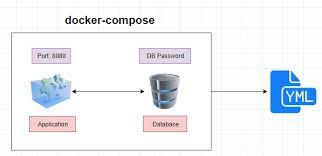
Dear Engineers in today topic we will learn the Docker for the DevOps Engineers Part-2
Docker compose is a tool used for the developed to help define and share multiple container applications.With the help of docker compose command we can create a yaml file to determine the services with one single command.
What is YAML?
Yaml is a popular programming language because it is human readbale and easy to understand YAML files use .yml or .yaml extension
Task-1
Docker compose- it is a tool that defining the running multi-container Docker applications. with the help of compose you use a yaml file to configure your applications.
Install the docker-compose
Syntax:- sudo apt-get install docker-compose -y

sudo apt-get install docker-compose -y Diagram.
Step 2 : Create a docker-compose.yml file inside project folder

Docker compose yaml file Diagram.
Version:3.3 it denotes we are using the version 3.3 docker compose.
Services: it wlill defines the different containers we will create.
build: keyword specifies the location of our dockerfile and represents the directory.
image:specify the image from docker hub for mysql containers
ports: keyword used for the ports that need to be exposed.
environment variables: for mysql which are required to run mysql.
Step 3: Run docker-compose.yml file
docker ps or docker-compose ps command list all the containers in the current docker-compose file.
Task-2
1 Pull a pre-existing docker image form a public repository (eg docker hub)

docker pull nginx:alpine
for running container as a non-root user, use command usermod to give user permission to docker
syntax: sudo usermod -a -G docker $USER

sudo usermod -a -G docker $USER
2 Inspect the container running process and exposed ports using the docker inspect command
syntax:- docker inspect <container_name or id>

docker inspect <container_name or id> Diagram.
3 Use the docker logs command to view the docker container log output
Synatx: sudo docker logs <container_name or ID>

sudo docker Containers logs Diagram
4 Use the docker stop and docker start commands to stop and start the container.
syntax: sudo docker stop <container-name or ID>

sudo docker stop <container-name or ID>
Syntax: sudo docker start <container-name or ID>

sudo docker start <container-name or ID> Diagram.
5 use the docker rm command to remove the container when you are done docker rm. remove one or more containers.
Syntax: sudo docker rm <container_name or ID>

sudo docker rm <container_name or ID> Diagram.
Thank you for reading the article!!


